Split PDF File
Extract the pages you need into a new PDF. Click pages in the preview or type page numbers.
1-3,5,8-10. Selecting pages above fills this in for you.Your file is ready
🔒 Files stay in your browser. For secure storage and sharing, consider Proton Drive (affiliate link).
About Split PDF
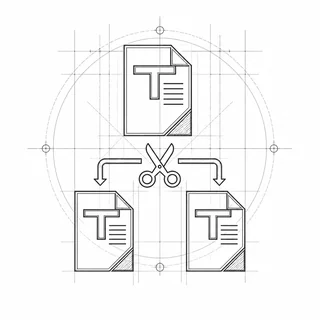
Take just the pages you need out of a long PDF. Click page thumbnails or type page numbers and ranges, then save them as one new PDF, or as separate one-page PDFs bundled in a ZIP file.
How to split a PDF
- Drop a PDF into the box, or click it to choose one.
- Click the pages you want in the preview, or type ranges such as 1-3,5,8-10.
- Optionally tick “Save each selected page as a separate PDF”.
- Click “Split PDF”, then save the result.
Everything happens in your browser; nothing is uploaded. Very large files (over ~100 MB) can be slow on phones.
Frequently asked questions
Is my PDF uploaded when I split it?
No. TrustPDF runs entirely in your web browser using JavaScript. Your file is read and processed on your own device and is never sent to a server. The site's Content-Security-Policy does not allow the page to send anything to any other site, and you can check the open-source code on GitHub.
How do I split a PDF into single pages?
Select all pages (or the ones you want), tick “Save each selected page as a separate PDF”, and click Split PDF. You get a ZIP file with one PDF per page.
What page range formats can I type?
Single pages and ranges separated by commas, for example 1-3,5,8-10. Pages are numbered from 1.
Does splitting keep the original quality?
Yes. The selected pages are copied unchanged into the new file.