JPG to PDF
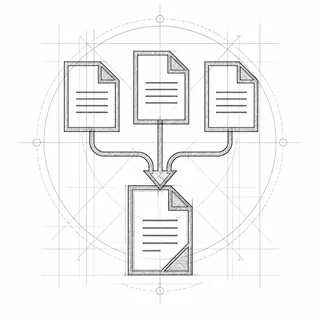
Turn JPG photos and scans into a single PDF, one photo per page, in the order you choose. PNG images work too.
Your file is ready
🔒 Files stay in your browser. For secure storage and sharing, consider Proton Drive (affiliate link).
About JPG to PDF
Phone photos of receipts, passports, contracts or homework often have to be sent as a PDF. Add the JPG files, drag them into order and save one PDF. The photos are placed as they are, without recompression, and they never leave your device, which matters for ID documents.
How to convert JPG to PDF
- Drop your JPG photos into the box, or click it to choose them.
- Drag the photos into the order you want the pages in.
- Choose the page size (same as the photo, A4 or US Letter) and a margin.
- Click “Create PDF”, then “Save PDF”.
Everything happens in your browser; nothing is uploaded. Very large files (over ~100 MB) can be slow on phones.
Frequently asked questions
Are my photos uploaded to convert them to PDF?
No. TrustPDF runs entirely in your web browser using JavaScript. Your photos are read and processed on your own device and is never sent to a server. The site's Content-Security-Policy does not allow the page to send anything to any other site, and you can check the open-source code on GitHub.
Can I combine several JPGs into one PDF?
Yes. Add as many JPG files as you like; each becomes one page, in the order shown in the list. Drag them to change the order.
Does converting JPG to PDF reduce quality?
No. The JPG data is copied into the PDF unchanged. If the PDF is too large to email, run it through Compress PDF afterwards.
Can I convert iPhone photos (HEIC)?
Not directly. Export or share them as JPG first; most phones can do this in the share menu or the camera settings (“Most Compatible”).