How to Merge PDF Files Without Uploading Them
Combine PDFs into one file in your browser, in the order you choose, without sending them to a server.
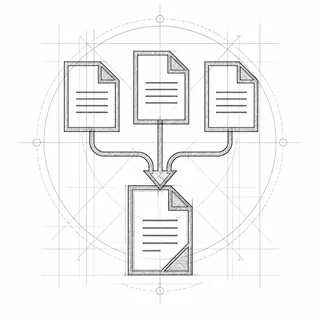 Use Merge PDF
Combine several PDF files into one, in the order you choose. Free, and your file never leaves your device.
Merging PDFs is the most common PDF task there is: a contract and its annexes, a set of invoices for your accountant, scanned pages that ended up as separate files. It is also the task people most often hand to a random website, which means uploading every one of those documents to someone else's server. You do not have to. Your browser can combine PDFs by itself.
How to merge PDFs in your browser
- Open Merge PDF.
- Drop all the PDFs into the box, or click it to pick them. You can add files in several rounds.
- Drag the files in the list into the order you want. The first file in the list becomes the first pages of the result.
- Click Merge PDFs, then Save Merged PDF.
The files are read from your disk into the page and combined on your own computer or phone, in a background worker so the page stays responsive with large files. Nothing is sent anywhere, and the tool keeps working if you disconnect from the internet after the page has loaded.
Getting the page order right
Merge PDF keeps every file's pages in their original order and puts the files one after another. If you need to mix pages between files, for example to put page 3 of one document after page 1 of another, merge first and then fix the order with Reorder PDF Pages, where you drag page thumbnails. To leave pages out, use Remove PDF Pages afterwards, or take only the pages you need from each file first with Extract PDF Pages.
What the merged PDF keeps, and what it doesn't
- Pages are copied exactly: text stays selectable and searchable, and images are not recompressed.
- The document title, author, subject and keywords are taken from the first file. If that file carries your name or an old working title, change it with the PDF Metadata Editor before you send the result.
- Bookmarks (the outline in a PDF reader's sidebar) are not carried over.
- Fillable form fields may stop working after a merge. Fill in the forms first and flatten them, then merge.
- Password-protected files cannot be merged until the password is removed. If you know it, use Unlock PDF first, and protect the merged file again with Protect PDF if it needs it.
Merging photos or scans that are not PDFs
Merge PDF takes PDF files only. If some of your pages are JPG or PNG images, for example photos of a receipt taken with your phone, turn them into a PDF first with Images to PDF, then merge that PDF with the others.
If the merged file is too big
A merged PDF is roughly as big as all the files put together. If it is too large to email or upload, run it through Compress PDF. The guide how to make a PDF smaller for email explains which setting to choose.
Why it matters where the merge happens
The documents people merge are rarely menus. They are contracts with annexes, loan applications, medical records and tax papers, often several people's worth in one go. A server-based merger receives all of them in full. Doing it in the browser removes that step entirely. If you would like to check rather than trust that claim, here is how.
Frequently asked questions
Is there a limit to how many PDFs I can merge?
There is no set limit. The files are combined in your browser, so the practical limit is your device's memory. Hundreds of pages are fine on a normal computer; very large scans may be slow on an older phone.
Why can't I merge a password-protected PDF?
An encrypted PDF cannot be read without its password. Remove the password with Unlock PDF first if you know it, merge, and protect the merged file again with Protect PDF if needed.
Does merging reduce the quality of my PDFs?
No. Pages are copied as they are: text stays selectable and images are not recompressed. The merged file is about as big as the originals put together.